Upload images from Claude
Verified in Claude on October 24, 2026
Turn an image attached to a Claude chat into a public PixelVault CDN URL and ready-to-paste Markdown. Connect your account once, allow the upload domain, then ask Claude to upload the file.
Uploads in this guide are public. Anyone with the CDN URL can view the image. Use an image you are comfortable sharing.
1. Add the PixelVault connector
In Claude, open Customize → Connectors and choose Add custom connector. Enter PixelVault as the name and this server URL:
https://mcp.pixelvault.dev/mcp/oauth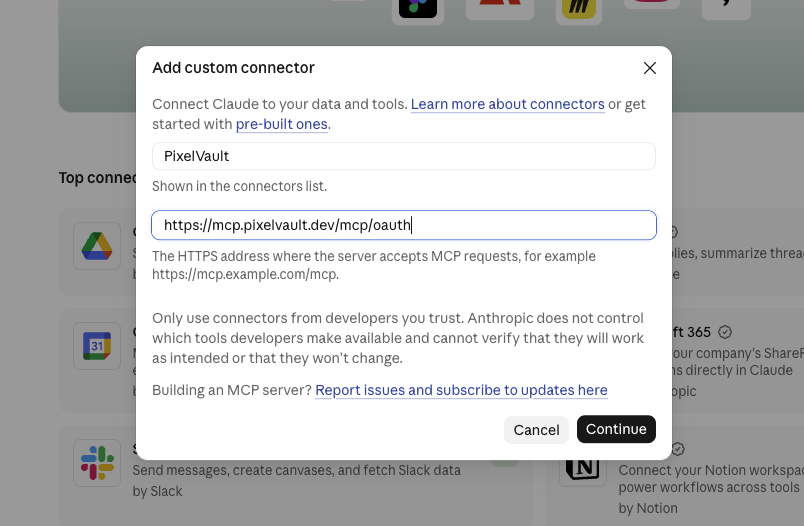
Click Continue. Keep Sign in now and Register automatically selected, then click Add. No custom headers or OAuth client credentials are needed.
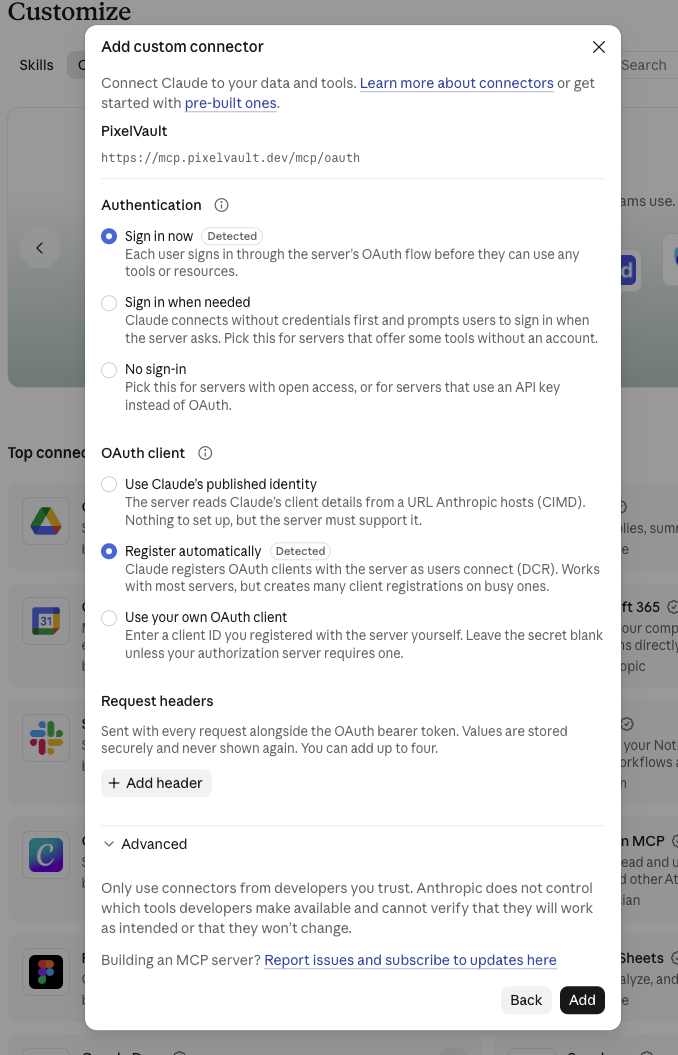
On the PixelVault sign-in page, enter your email, request a code, and enter the six-digit code from your inbox. Click Verify & connect, then Return to Claude. Claude should show PixelVault's tools, including Create temporary upload URL.
2. Allow the upload domain
The connector can request an upload URL, but Claude's code environment needs network access to send the local image bytes. Both are required for this workflow.
- Open Claude's Settings → Capabilities.
- Under Code execution and file creation, enable Run code in the cloud and Allow network egress.
- In Domain allowlist, change Package managers only to the option that allows additional or specific domains.
- Enter
mcp.pixelvault.devunder Additional allowed domains and click Add.
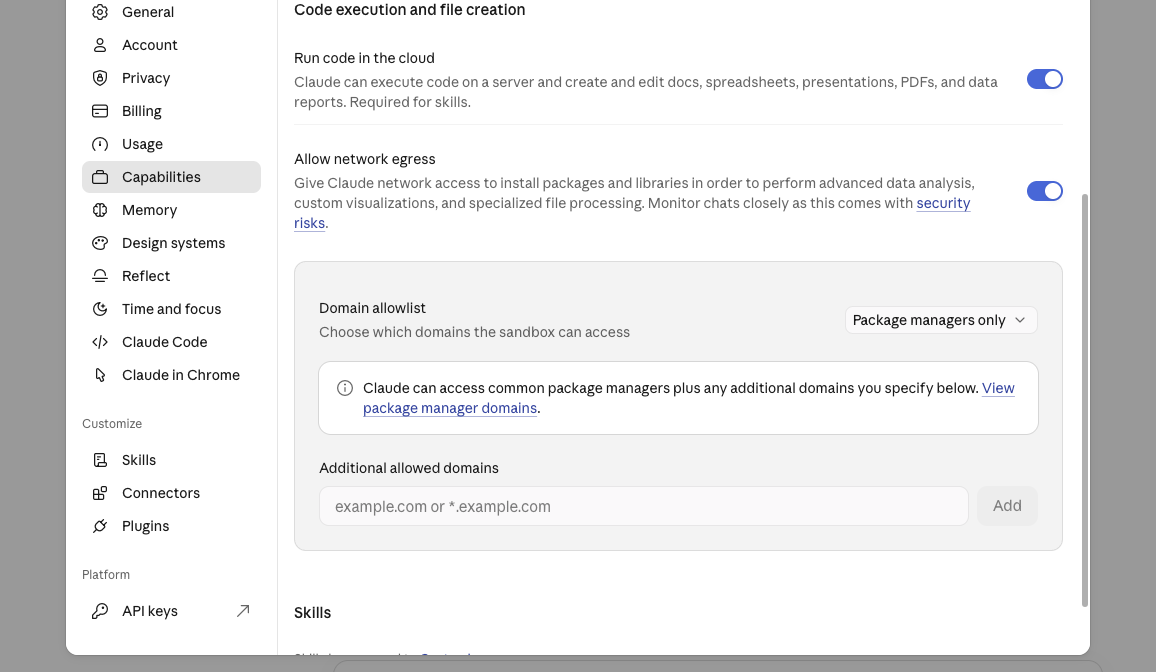
Settings can differ by plan or workspace. On managed Team or Enterprise accounts, an organization owner may need to configure this under Organization settings → Capabilities. See Claude's network access instructions if these controls are unavailable.
3. Attach an image and ask Claude to upload it
Start a chat with PixelVault enabled, attach an image, and send:
Use PixelVault's create_upload_url tool to upload this attachment from the local filesystem. Compute its byte size and SHA-256, upload using curl, and return the CDN URL and Markdown.
When Claude asks to use Create temporary upload URL, check the filename and click Allow once. Claude then uploads the bytes from its code environment. You do not need to paste an API key or manually encode the image.
The temporary URL expires after 10 minutes and only accepts the file it was created for. Keep that URL private. The final CDN URL is the shareable one.
4. Check the result
Claude should return a CDN URL and Markdown in this format:
https://img.pixelvault.dev/PROJECT_ID/IMAGE_ID.png
These are placeholders; use the actual URL Claude returns. Open it to confirm that the image loads. You can then paste the Markdown into a GitHub issue or pull request. Uploading an image does not post anything to GitHub.
This workflow was verified with a 43,044-byte PNG: Claude uploaded it and reported the same stored size.
Troubleshooting
“Network blocked the connection”
Check that mcp.pixelvault.dev is in the domain allowlist, then tell Claude: “I have allowed mcp.pixelvault.dev. Create a fresh upload URL and retry the curl upload.” If the chat retains the old network settings, try a fresh chat and attach the image again.
The upload tool is missing
Check that PixelVault is enabled in the chat. Refresh the connector's tools or reconnect it, then start a fresh chat.
The upload URL expired or the file changed
Ask Claude to recompute the file size and SHA-256 and request a new upload URL. URLs expire after 10 minutes and are bound to the exact file bytes. They are not single-use; repeated successful uploads can create duplicates. After an uncertain result, check your PixelVault images before retrying.
Claude suggests upload_image instead
That tool works with a host-provided attachment download URL, a public source URL, or the image bytes encoded as base64. A local filesystem path alone is not enough. Use the temporary URL workflow when the attachment is only available in Claude's code environment.
The image is rejected
Use a supported JPG, PNG, GIF, WebP, AVIF, or SVG file up to 5 MB. Your project's upload and storage limits still apply.